Creating a New Listing
Once you've set up your store and first listing, you can create new listings in the Seller Dashboard.

-
In the dashboard you should see a list of your storefronts. Click on "Manage Listings" for the storefront you want to list an item for.
-
You should now see a list of your current listings. Click "Create New Listing" to create a new listing.
-
You will now be able to create a new listing, using the wizard.
Don't Forget to Confirm
Each step in the wizard requires a blockchain transaction. Click the blue button at the bottom of the wizard to trigger it, then confirm the transaction in your wallet before clicking Next.
1. Set the token/listing metadata.
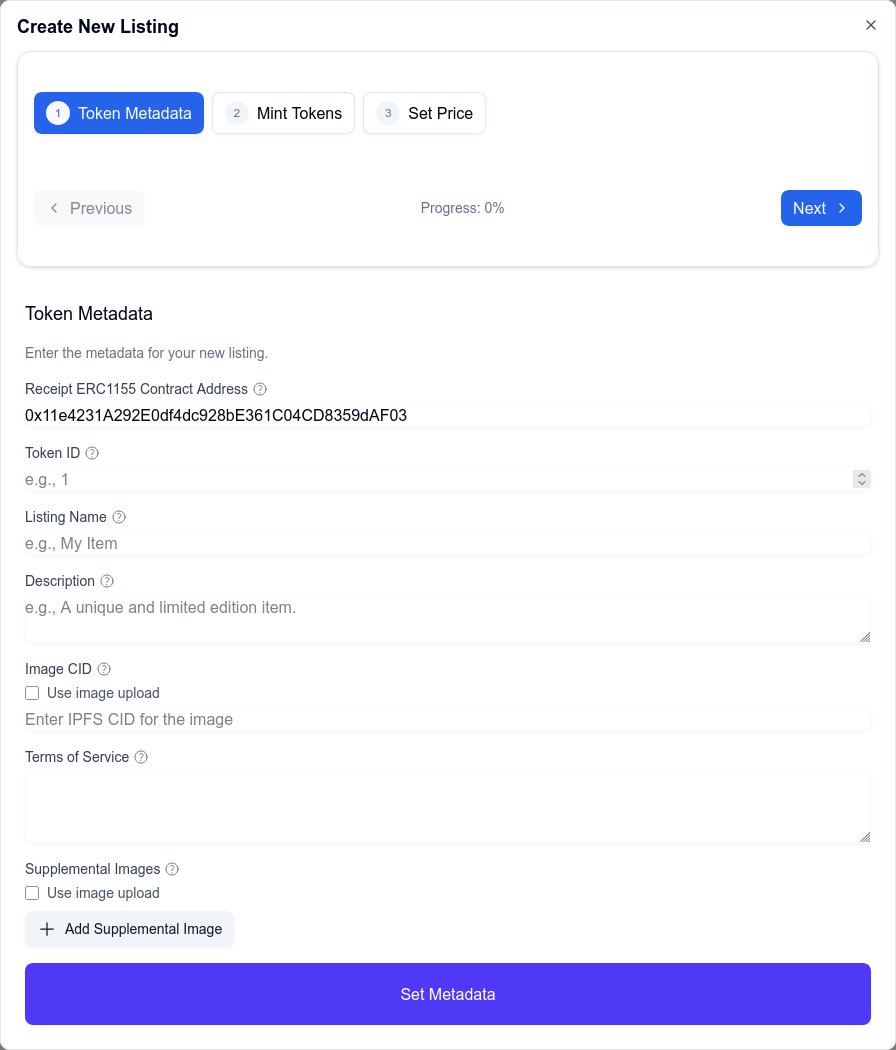
- Receipt ERC1155 Contract Address: The address of the Receipt ERC1155 Contract (is pre-filled and can't be changed)
- Token ID: The ID of the token you want to list for sale (can be any token ID which hasn't been created yet)
- Listing Name: The name of your listing.
- Description: The description of your listing.
- Image CID: The IPFS CID of the image for the token (learn more)
- Terms of Service: The terms of service for the token
- Supplemental Images: Additional images for the token (learn more)
Once you're done, click "Set Metadata" and confirm the transaction in your wallet.
2. Mint the token.

- Contract Address: The address of the Receipt ERC1155 Contract (is pre-filled and can't be changed)
- Token ID: The ID of the token you want to mint. (prefilled from the previous step)
- Amount: The quantity of the item you're selling.
Click "Mint Tokens" and confirm the transaction in your wallet.
3. Setting the price of the listing.
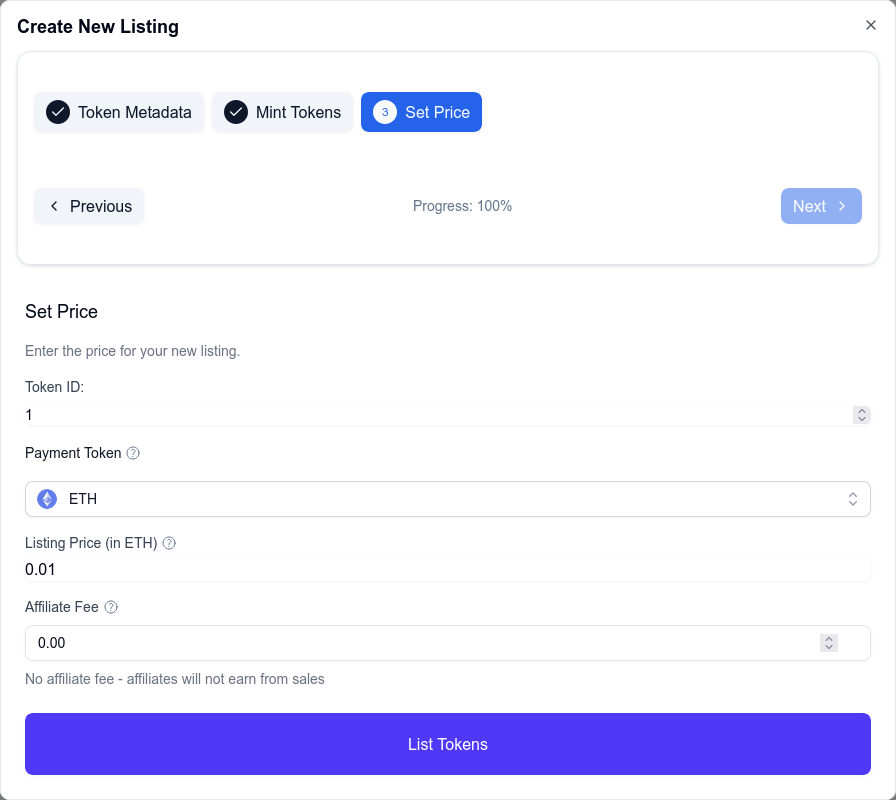
- Token ID: The ID of the token you want to set the price for. (prefilled from the previous step)
- Payment Token: The token you want to use to pay for the item.
- Listing Price: The price of the item you're selling.
- Affiliate Fee: The fee you want to set for the affiliate. (learn more)
Click "List Tokens" and confirm the transaction in your wallet.
You're all set! Your listing is now active and ready to sell.