Image Uploads in UMP
When you upload images to UMP, we upload them to IPFS and only store the "CID" on the blockchain. This ensures that the image is stored permanently 1 and without costing you any gas.
Uploading a new image
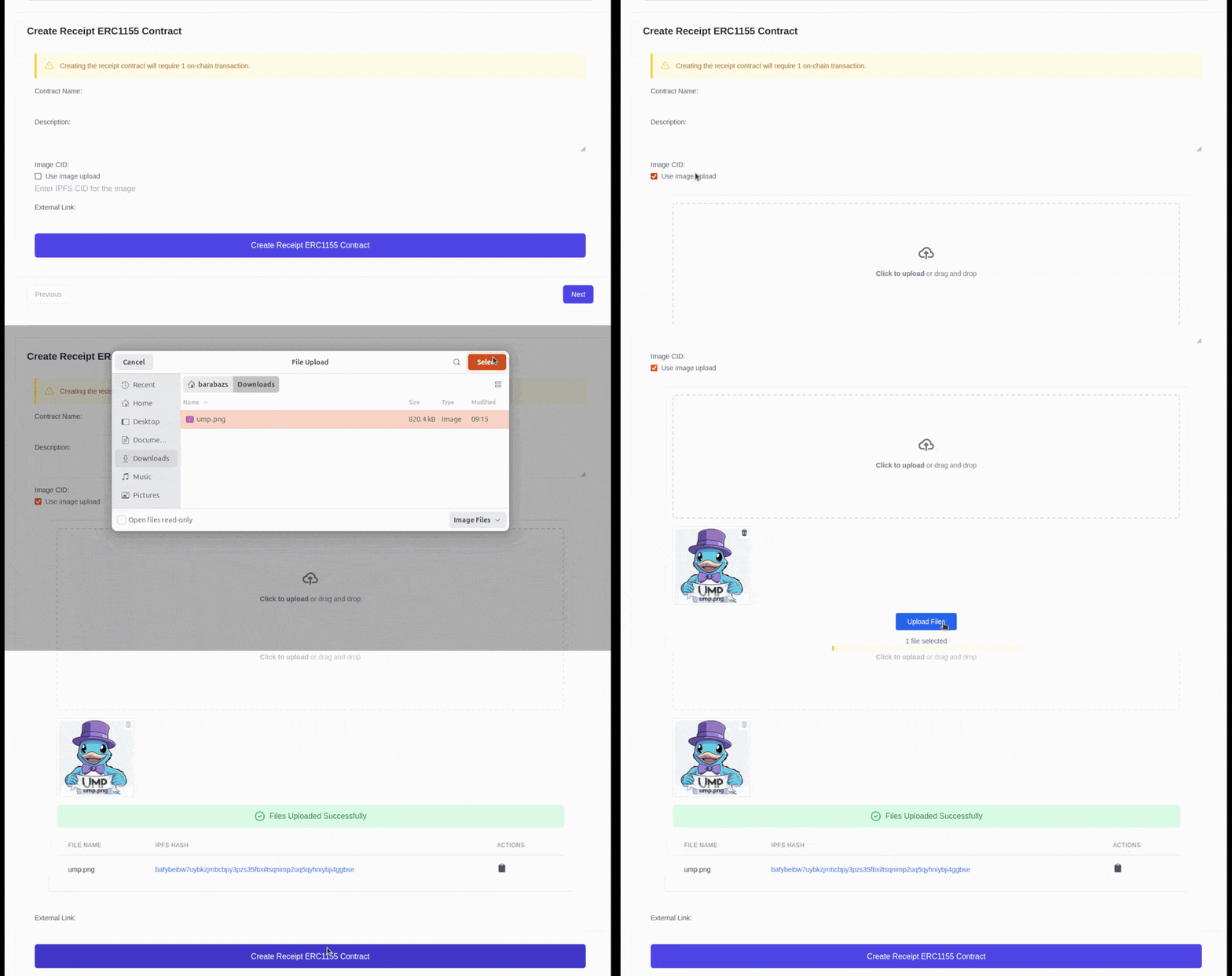
- Either click the "Click to Upload" button to select an image from your computer, or drag and drop an image onto the upload area.
- Click on "Upload Files" to upload the image.
- You should see:
- a confirmation that the files were uploaded successfully.
- A table with the file name and the corresponding IPFS Hash (CID).
- The hash should automatically be inserted into the text field.
Using an existing image
If your image is already hosted on IPFS, you can use it by pasting the CID into the text field.
Example CID
A typical IPFS CID looks like this:
Or like this:-
As long as it is pinned by an IPFS node, the image will be available. ↩